
Auction House guide 04
Buy and fill offers
Two ways to close a deal: buy from someone's sell offer, or sell your item straight into someone's buy offer.
-
Buy from a sell offer
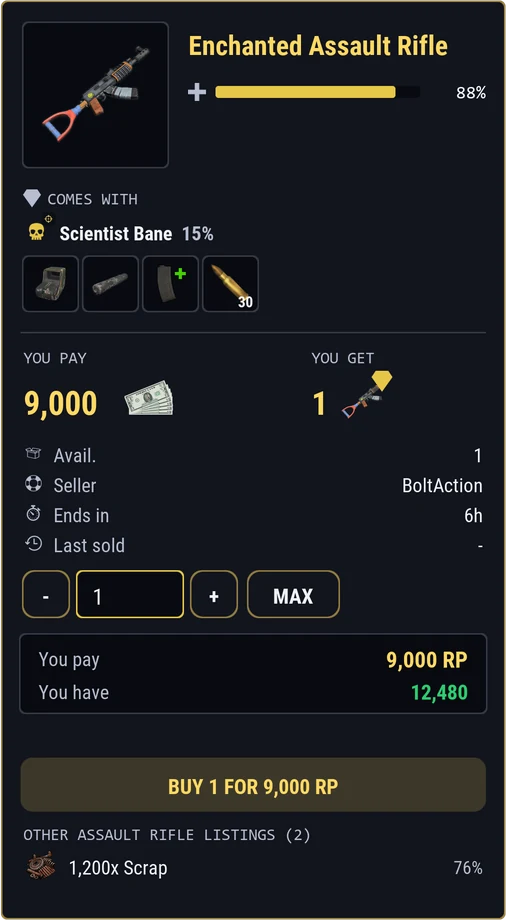
In BROWSE on the SELLING side, click the listing. Choose how many lots with -, + or MAX. YOU PAY and YOU HAVE show the total and what you hold. Press BUY: what you bought arrives in DELIVERIES, and the seller is paid at once.
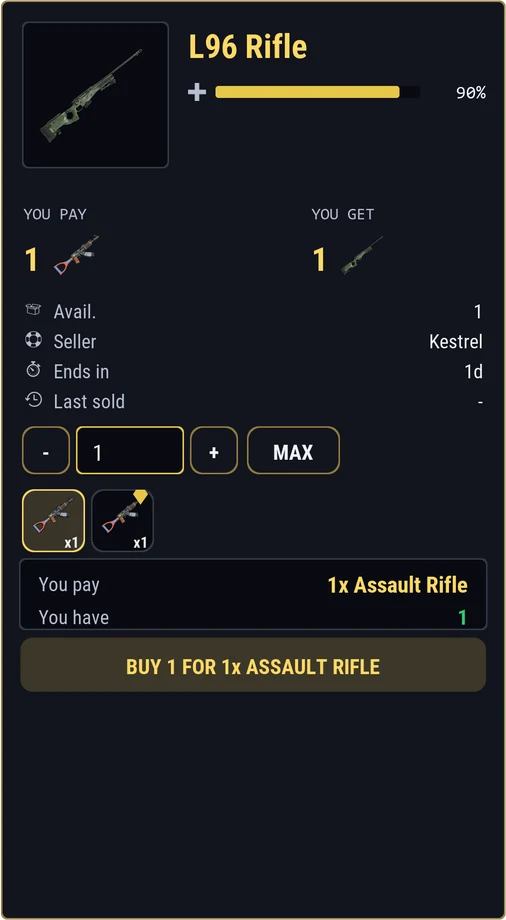
Priced in a weapon? Pick which of yours to hand over. -
Paying with a weapon or armor
If the price is a single item such as a weapon or a piece of armor, pick which of yours to hand over. Identical pieces share a tile, the plainest come first, and the first plain one is picked for you. A piece with extras, like enchantments or inserts, is never picked for you.
-
Sell into a buy offer
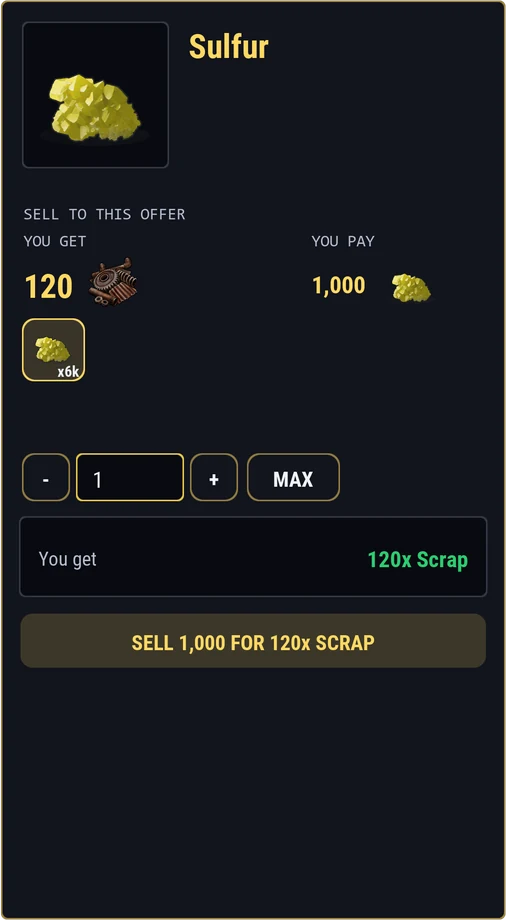
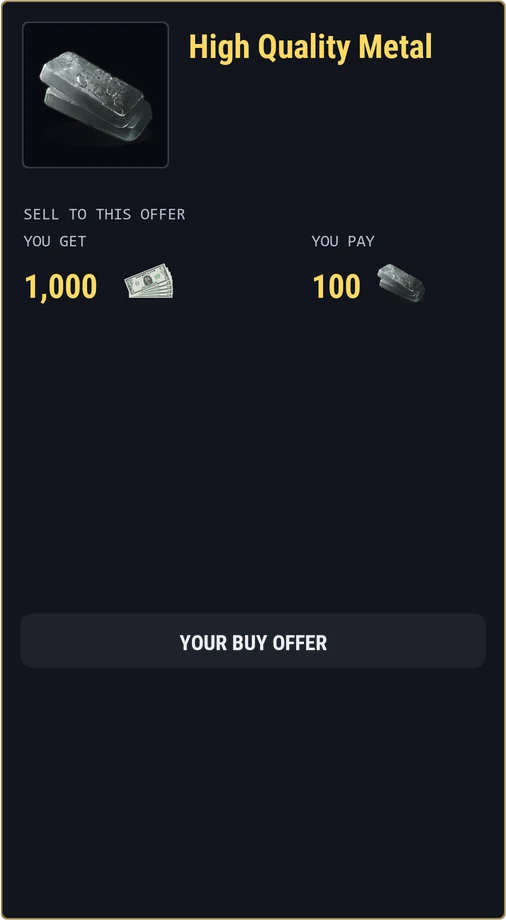
Flip to BUYING and click an offer. SELL TO THIS OFFER shows your matching pieces as tiles, plainest first. If the buyer pays with a particular piece, THE PIECE YOU GET shows it. Choose how many, then press SELL: you are paid from the buyer's held payment at once, and your item goes to the buyer.
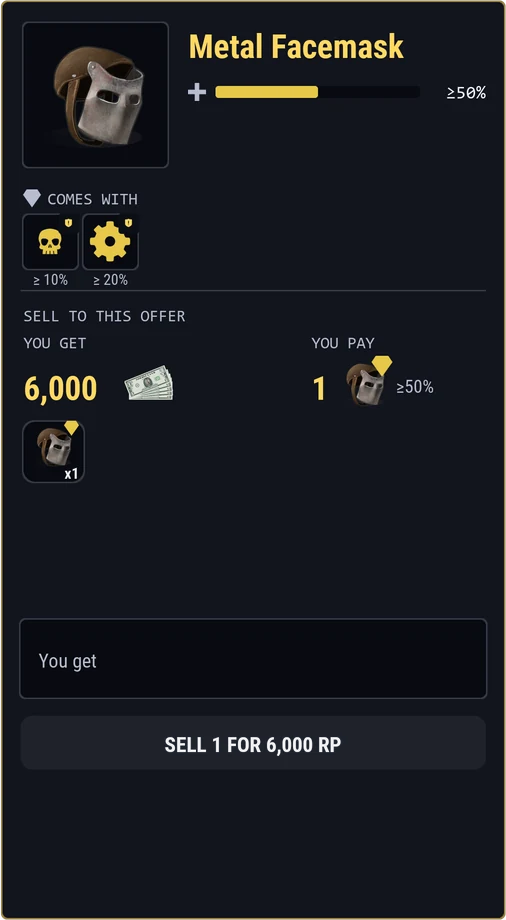
Enchanted offers list what they want and the lowest strength for each. Any Enchantment: when you fill an offer that wants Any Enchantment, or pay a price set in Any Enchantment, you do not choose which kits go. They are taken from your kits by count.
-
Check the hand-over warning
If the piece you hand over has extras, a window shows what goes and what stays with you:
- GOES WITH IT: enchantments and armor inserts.
- COMES BACK TO YOU: attachments and loaded ammo. They go to your inventory, or to Deliveries if it is full.
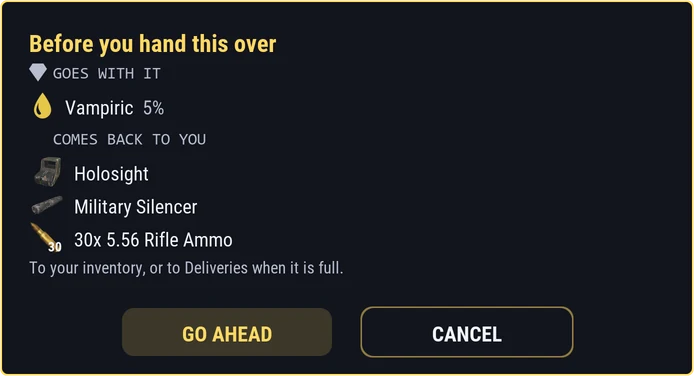
Press GO AHEAD to trade, or CANCEL to keep it. -
Your own offers
You cannot trade with your own listing or buy offer; the button is turned off. To change one, cancel it in MY OFFERS and post it again.
-
If a trade is refused
A short window tells you why. The usual reasons:
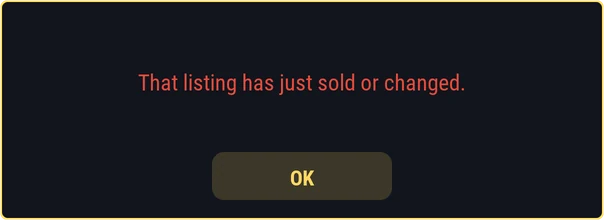
Someone got there first. Check the list again. 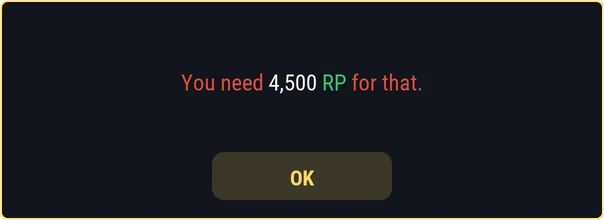
You do not hold enough of the price. 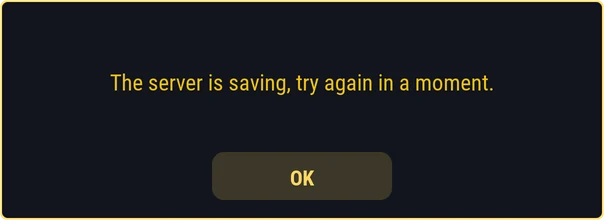
Nothing was lost; try again in a moment. 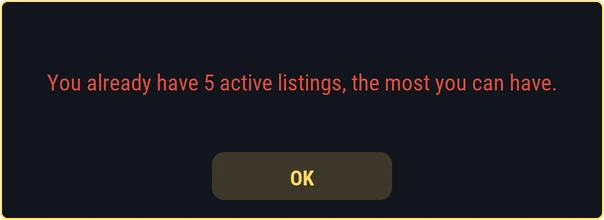
You have as many live offers as your rank allows.